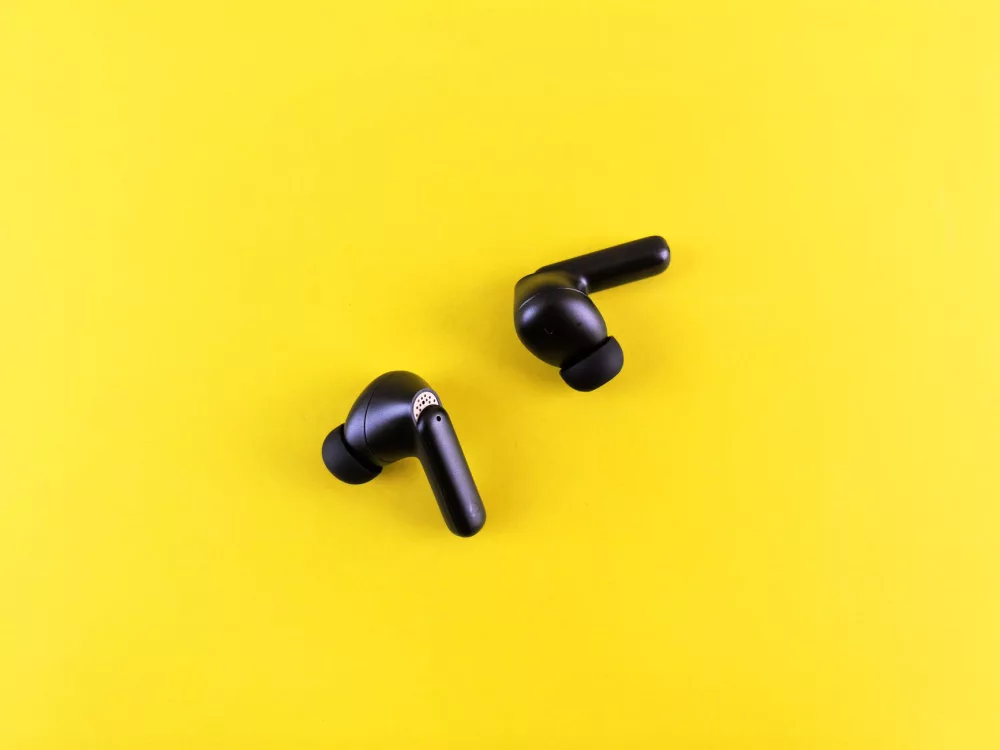
Hey there! So, you've got a brand-new pair of earbuds, or maybe you're just struggling to get your trusty old ones to connect to a new device. Don't worry, we've all been there. It can feel a little bit like magic when they work seamlessly, but like a frustrating puzzle when they don't. The good news? Connecting earbuds, especially Bluetooth ones, isn't nearly as complicated as it might seem at first glance. Most of the time, it's just a matter of knowing a few basic steps and what to look for. I'm here to walk you through everything, making sure you can get your audio flowing in no time.
Understanding the Basics: Bluetooth is Your Friend
Before we dive into the nitty-gritty, let's quickly touch on what's actually happening behind the scenes. Almost all modern wireless earbuds connect using Bluetooth technology. This is a short-range wireless standard that allows devices to communicate over short distances without needing cables. Think of it like a tiny, invisible conversation happening between your earbuds and your phone or computer. For this conversation to start, both devices need to be 'introduced' to each other – a process we call pairing.
Getting Your Earbuds Ready for Connection
This initial setup phase is super important, no matter what device you're connecting to. Let's make sure your earbuds are prepped and ready for action.
- Charge 'Em Up! First things first, ensure your earbuds have enough juice. Low battery can sometimes interfere with the pairing process or cause connection drops. Pop 'em into their charging case for a bit, or connect them directly if they have a charging port. A fully charged device usually behaves much better.
- Activate Pairing Mode: This is the most crucial step. Every pair of Bluetooth earbuds has a specific way to enter 'pairing mode' or 'discovery mode.' This makes them visible to other devices. Here's how it usually works:
- For earbuds with a charging case: Often, you just need to open the case with the earbuds inside. Many cases have a small button, sometimes inside or on the back. Press and hold this button for a few seconds until an indicator light (often white or blue) starts flashing. This flashing light signals they're in pairing mode.
- For earbuds without a case or older models: You might need to press and hold a button on one of the earbuds themselves (usually the main power/multifunction button) until you see the flashing light. Consult your earbud's manual if you're unsure – it's always the best source for specific instructions!
- Keep Them Close: During the pairing process, keep your earbuds relatively close to the device you're trying to connect them to. Bluetooth works best when there aren't too many obstacles or too much distance between the two communicating devices.
Connecting Your Earbuds to a Smartphone
This is probably the most common scenario, and thankfully, it's usually quite straightforward for both Android and iOS devices. I'll walk you through both.
On an Android Phone
Connecting earbuds to an Android phone is a breeze, generally speaking.
- Go to Settings: Swipe down from the top of your screen to open the Quick Settings panel, then tap on the gear icon (⚙️) to go to your main Settings. Alternatively, find the 'Settings' app in your app drawer.
- Find Bluetooth: Look for 'Connected devices' or 'Bluetooth.' Tap on it.
- Enable Bluetooth: Make sure the Bluetooth toggle is switched 'On.' You'll see it turn blue or another active color.
- Pair New Device: Tap on 'Pair new device' or 'Connect new device.' Your phone will now start scanning for nearby Bluetooth devices that are in pairing mode.
- Select Your Earbuds: In the list of available devices, you should see the name of your earbuds appear. It might be something like 'Jabra Elite 75t' or 'AirPods Pro' or just 'Bluetooth Earbuds.' Tap on their name.
- Confirm (if needed): Sometimes, a pop-up might ask you to confirm the pairing. Just tap 'Pair' or 'OK.'
- You're Connected! Once paired, your earbuds should show up as 'Connected' under your Bluetooth devices list. You'll often hear a little chime or voice prompt from the earbuds confirming the connection.
On an iPhone or iPad (iOS)
Connecting to an Apple device is incredibly simple, especially if you have AirPods, but it's easy for other brands too.
- Open Settings: Find and tap the 'Settings' app icon on your home screen.
- Tap Bluetooth: On the left-hand menu, you'll see 'Bluetooth.' Tap it.
- Turn Bluetooth On: Ensure the Bluetooth toggle is green. If it's grey, tap it to switch it on.
- Enter Pairing Mode (Earbuds): Make sure your earbuds are in pairing mode, as I described earlier. For AirPods, simply open the lid of the charging case near your iPhone – a pop-up will usually appear automatically.
- Select Your Earbuds: Under 'Other Devices,' you'll see your earbuds' name appear. Tap on it.
- Paired and Ready: Your device will connect, and your earbuds will move from 'Other Devices' to 'My Devices,' showing 'Connected' next to their name. Easy peasy!
Connecting Earbuds to a Computer
Connecting to a laptop or desktop computer is also very common, whether you're using Windows or macOS. The steps are slightly different, but the principle is the same.
On a Windows PC
If you're running Windows 10 or 11, here's how you'd typically connect your earbuds.
- Open Settings: Click the Start button (Windows logo) and then click on the gear icon (Settings).
- Go to Bluetooth & Devices: In the Settings window, click on 'Bluetooth & devices' (or 'Devices' then 'Bluetooth & other devices' on older versions).
- Enable Bluetooth: Make sure the Bluetooth toggle is switched 'On.'
- Add Device: Click on 'Add device' (it usually has a '+' sign next to it).
- Choose Bluetooth: In the pop-up window, select 'Bluetooth' as the type of device you want to add.
- Put Earbuds in Pairing Mode: Make sure your earbuds are actively in their pairing mode, showing that blinking light.
- Select Your Earbuds: Your PC will scan, and you should see your earbuds appear in the list. Click on their name.
- Connect: Follow any on-screen prompts to complete the connection. You might get a message saying 'Your device is ready to go!'
On a Mac (macOS)
Mac users will find a similar, intuitive process for connecting their audio gear.
- Open System Settings (or System Preferences): Click the Apple menu () in the top-left corner of your screen, then select 'System Settings' (or 'System Preferences' on older macOS versions).
- Click Bluetooth: In the sidebar (or main window), click on 'Bluetooth.'
- Turn Bluetooth On: Ensure Bluetooth is enabled. If it's off, click 'Turn Bluetooth On.'
- Enter Pairing Mode: Get your earbuds into pairing mode.
- Find Your Earbuds: Your Mac will list available Bluetooth devices. Find your earbuds' name in the list.
- Click Connect: Click the 'Connect' button next to your earbuds' name. They should connect fairly quickly.
Common Troubleshooting Tips: When Things Go Sideways
Sometimes, despite following all the steps, your earbuds just won't cooperate. Don't throw them out the window yet! Here are some common fixes I've found really helpful:
- Toggle Bluetooth Off and On: This is the classic tech support move for a reason – it often works! Turn Bluetooth off on your device, wait a few seconds, then turn it back on. This refreshes the connection.
- Restart Both Devices: A full restart of your phone, tablet, or computer, along with turning your earbuds off and on (or putting them back in their case), can clear up temporary glitches. It's like giving everything a fresh start.
- Forget the Device: If your earbuds were previously connected to your device but aren't connecting now, try 'forgetting' them. Go to your device's Bluetooth settings, find your earbuds in the list, and select 'Forget Device' or 'Unpair.' Then, start the pairing process from scratch as if they were brand new. This often resolves persistent connection issues.
- Check for Interference: Other wireless devices, Wi-Fi routers, or even physical obstructions can sometimes interfere with a Bluetooth signal. Try moving to a different location or away from potential sources of interference.
- Reset Your Earbuds: Many earbuds have a factory reset option. This usually involves holding down a button for an extended period or a specific sequence. This can fix deep-seated software glitches in the earbuds themselves. Check your manual for specific instructions on how to perform a factory reset.
- Battery Levels Again: Seriously, double-check those battery levels. Some earbuds will show as 'connected' but won't produce sound if the battery is critically low.
- Only One Earbud Connecting: If only one earbud is working, try putting both back in the case, closing it for a few seconds, and then taking them out again. Sometimes, one might just need to re-sync with the other. A factory reset is also a good option here.
A Few Pro Tips for a Smooth Experience
To ensure you have the best possible experience with your earbuds, I've got a couple of extra pointers for you.
- Keep Software Updated: Regularly update the operating system on your phone, tablet, or computer. Manufacturers often release updates that improve Bluetooth connectivity and stability. Some earbud brands also have companion apps that allow you to update the earbud firmware – it's a good idea to check those too!
- Be Mindful of Simultaneous Connections: Most earbuds can only connect to one device at a time. If you're trying to connect to your phone but they're still paired and in range of your computer, they might prioritize the older connection. Disconnect them from the previous device first. Some premium earbuds offer 'multipoint' connections, allowing them to connect to two devices simultaneously and switch automatically, but this isn't universal.
- Clean Those Earbuds! While not directly related to connection, keeping your earbuds clean (especially the charging contacts in the case and on the earbuds) can prevent charging issues, which in turn can lead to connection problems if one earbud isn't charged properly. A dry cotton swab or a soft brush works wonders.
Connecting your earbuds really should be a seamless part of your daily routine. By understanding the basics, following these steps, and knowing what to do when things go awry, you'll be enjoying your favorite tunes or podcasts without any fuss. I hope this guide has taken the mystery out of the process for you. Happy listening!