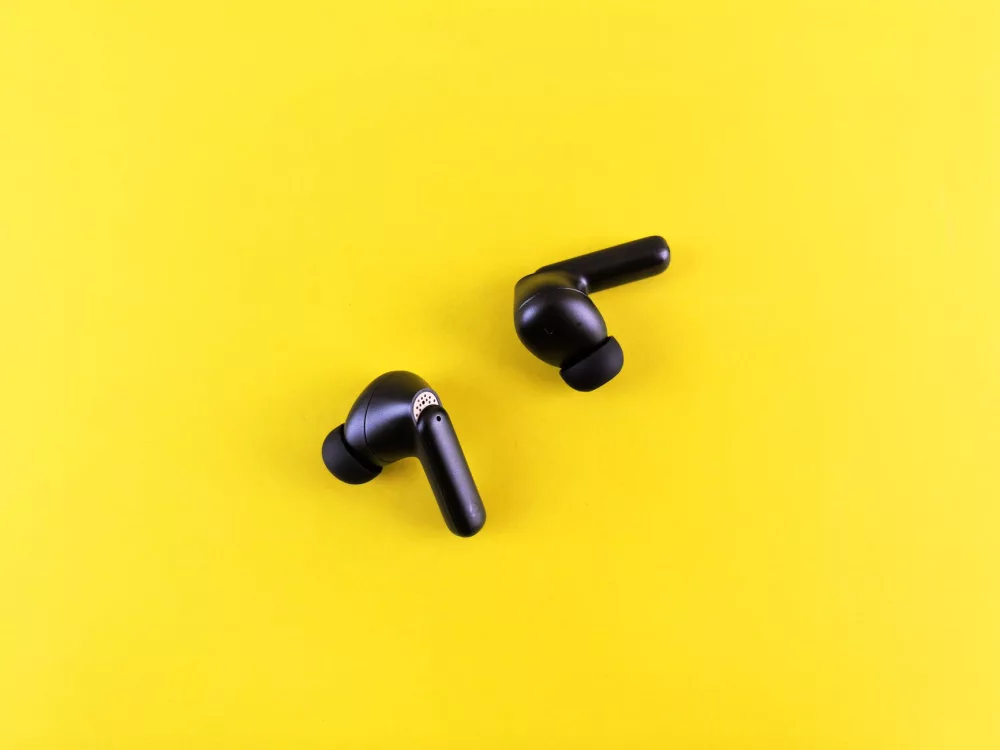
Alright, so you’ve got a fantastic pair of earbuds, whether they're brand new and fresh out of the box, or maybe they're your trusty companions you just can't seem to get reconnected. I know that feeling of wanting to dive into your favorite tunes, podcast, or audiobook, only to be met with a frustrating silence. Connecting earbuds, especially those sleek wireless ones, can sometimes feel a bit like trying to solve a puzzle. But honestly, it's usually much simpler than you think! I’m here to walk you through the entire process, covering everything from the basic steps to those tricky troubleshooting moments. My goal is to make sure you can effortlessly connect your earbuds to just about any device, every single time.
Understanding the Basics: Bluetooth is Your Friend
Most modern earbuds, whether they're true wireless, neckband style, or even some over-ear models, rely on Bluetooth technology for their connection. Bluetooth is essentially a short-range wireless technology that allows devices to communicate with each other without cables. Think of it like a tiny, invisible bridge between your earbuds and your smartphone, tablet, or laptop. The good news is that the core process for connecting via Bluetooth is pretty consistent across most brands and devices. We just need to get those two devices to "see" each other and then agree to link up.
Step-by-Step: Connecting Your Wireless Earbuds
Let's break this down into clear, manageable steps. If you follow these, you'll be jamming out in no time, I promise!
- 1. Charge 'Em Up First!
This might seem super obvious, but you wouldn't believe how many connection issues stem from low battery. Bluetooth modules need a decent amount of power to function correctly and maintain a stable connection. So, before you even start, pop your earbuds into their charging case or plug them in if they have a direct charging port. Give them at least 15-30 minutes, or ideally, a full charge. A fully charged earbud is a happy and cooperative earbud, trust me on this one!
- 2. Activate Bluetooth on Your Device
Next up, grab the device you want to connect your earbuds to – be it your smartphone, tablet, or computer. You'll need to make sure its Bluetooth function is turned on. On most smartphones, you can usually swipe down from the top (Android) or top-right (iOS) to access the Quick Settings or Control Center. Look for the familiar Bluetooth symbol (it kinda looks like a funky 'B') and tap it to enable it. For laptops, you'll typically find it in the Settings menu under 'Devices' or 'Bluetooth & other devices'. Just make sure that toggle is switched to 'On'.
- 3. Put Your Earbuds into Pairing Mode
This is often the most crucial and sometimes confusing step, as it varies a bit between different earbud models. Pairing mode is what makes your earbuds discoverable to other devices. Here are the common ways to do it:
- For True Wireless Earbuds (like AirPods, Galaxy Buds, etc.): Often, simply opening the charging case with the earbuds inside will automatically put them into pairing mode. You might see a small LED light on the case start to blink, indicating they're ready to connect. Sometimes, there's a small button on the case (often on the back or inside) that you'll need to press and hold for a few seconds until the light starts blinking.
- For Neckband or Tethered Earbuds: These usually have a dedicated power button. To enter pairing mode, you'll typically press and hold this power button for an extended period (say, 5-7 seconds) beyond just turning them on. Listen for an audio prompt like "pairing mode" or "ready to pair," and look for an LED light flashing rapidly, often in blue or red/blue alternating colors.
- Check Your Manual: When in doubt, always, always consult the little instruction booklet that came with your earbuds. It's truly the best source for specific pairing instructions for your exact model.
- 4. Select Your Earbuds from the Device's Bluetooth Menu
Once your earbuds are in pairing mode, your device's Bluetooth menu should start to populate with available devices. You'll usually see a list, and your earbuds' name should appear there (e.g., "AirPods Pro," "JBL Tune 500BT," or sometimes just the brand name). Tap on your earbuds' name to initiate the connection. If you've connected them before, they might just say "Connected" or "Active." If it's a first-time connection, you might get a prompt asking to confirm or pair. Just hit 'Pair' or 'OK'.
- 5. Confirm Connection and Test Audio
After selecting, your device should indicate that the earbuds are "Connected" or "Paired." Your earbuds might also give you an audio cue like "Connected." Now, the fun part: play some music or a video! Make sure the sound is coming through your earbuds and not your device's speakers. If it is, you've nailed it!
Troubleshooting Common Earbud Connection Issues
Sometimes, things don't go perfectly, and that's okay! We've all been there. Here are some quick fixes for common problems:
My Earbuds Aren't Showing Up in the Bluetooth List!
- Are They Charged? Seriously, check again.
- Are They in Pairing Mode? Double-check the light indicators and try putting them back into pairing mode. Maybe you didn't hold the button long enough.
- Too Many Devices? If you have a lot of Bluetooth devices around, turn off Bluetooth on any other devices you're not using. This helps reduce interference and keeps the list cleaner.
- Proximity Matters: Make sure your earbuds and your device are close to each other, ideally within a few feet.
- Power Cycle Everything: Turn off your device's Bluetooth, turn off your earbuds, then turn them both back on and try again. A simple reset often works wonders.
They Show Up, But Won't Connect or Keep Disconnecting!
- Forget the Device: This is a powerful troubleshooting step. On your device's Bluetooth settings, find your earbuds' name, tap on it, and select "Forget This Device" or "Unpair." This clears out any old, potentially corrupted connection data. Then, go back to step 3 and try pairing them as if they were brand new.
- Reset Your Earbuds: Many earbuds have a factory reset option. This usually involves holding a button for an extended period (e.g., 10-15 seconds) or pressing a sequence of buttons. Again, your manual is key here. A factory reset can solve persistent issues.
- Restart Your Device: A full restart of your phone, tablet, or computer can clear up software glitches that might be preventing a stable connection.
- Interference: Sometimes, Wi-Fi routers, microwaves, or other electronics can cause interference. Try connecting in a different location.
Only One Earbud is Working!
This is a super common issue, especially with true wireless earbuds. Often, one earbud has lost its connection to the other. To fix this:
- Put Them Both Back in the Case: Close the lid, wait a few seconds, then open it again. This often forces them to re-sync with each other.
- Reset Them Together: Some earbuds have a specific reset procedure for re-pairing the left and right units. Check your manual.
- Clean Contacts: Make sure the charging contacts on both the earbuds and inside the case are clean and free of debris. Sometimes a poor charging connection can cause one earbud not to power on correctly.
Wired Earbuds: The Old Reliable
While this guide focuses heavily on wireless, let's not forget our wired friends! Connecting wired earbuds is gloriously simple:
- 3.5mm Audio Jack: Just plug the 3.5mm connector into the headphone jack on your device. That's it!
- USB-C or Lightning Connector: If your device doesn't have a 3.5mm jack (like many newer smartphones), your wired earbuds will likely have a USB-C or Lightning connector. Simply plug it into the appropriate port. No pairing, no batteries (usually), just pure audio.
Best Practices for a Smooth Earbud Experience
- Keep 'Em Charged: I can't stress this enough. It prevents so many headaches.
- Keep Your Devices Updated: Ensure your phone's or computer's operating system is up to date. Software updates often include improvements to Bluetooth connectivity.
- Read the Manual: Seriously, your earbud's manual is packed with specific, helpful information about pairing, resetting, and features unique to your model. Don't be afraid to crack it open!
- Cleanliness is Key: Regularly clean your earbuds, especially the charging contacts and ear tips. This can prevent charging issues and improve sound quality.
Connecting your earbuds really isn't a dark art. With a little patience and by following these steps, you'll be able to enjoy your audio content without any fuss. I hope this comprehensive guide helps you stay connected and keeps your listening experience crystal clear. Happy listening!